Which Complementary Settings Are Worth Changing
Complementary options look dense on the first visit. Change one group at a time on Unbound or Reimagined so you know what improved the look, or killed FPS. These menus sit under Iris or OptiFine on Minecraft Java Edition.
Profiles before checkboxes
Apply Potato, Low, Medium, High, or Ultra first. Profiles set a coherent bundle. Random max toggles on top of Ultra is how FPS disappears. See profiles and Potato settings.
Shadows
Shadow resolution and distance change both look and cost. If forests stutter when you turn, lower shadows before you gut clouds or water.
Lighting and exposure
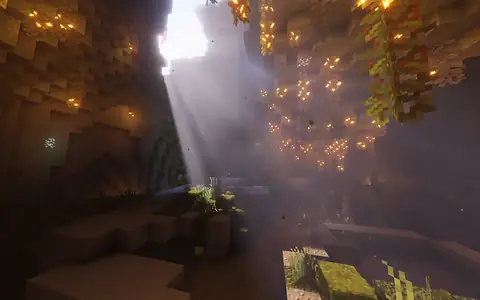
These shape daylight, torch response, and cave readability. Small ambient changes usually beat huge exposure swings for survival play.
Atmosphere
Fog, clouds, and volumetrics build mood in rain and at the horizon. They also spike GPU time. Reduce them while troubleshooting. If the world breaks after a toggle, start at troubleshooting.
Water
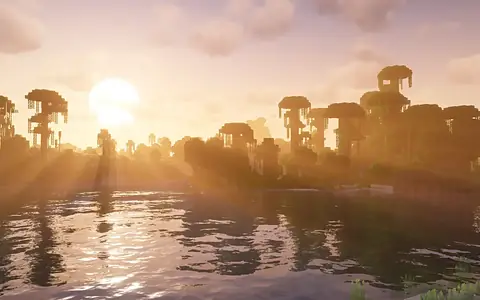
Reflections and wave detail sell oceans and rivers. Raise water quality after outdoor FPS is already stable. Cut order: FPS boost.
A simple loop
Pick Medium or Potato, change one group, walk the same short route, keep or revert based on FPS and readability, then save a named custom profile. If you cannot explain what a setting does, leave it until Medium feels stable.
Same menus, two styles
Unbound and Reimagined share profile names. Art direction differs more than menu layout. Pick a style on Unbound vs Reimagined, then tune once.
Caves, recording, foliage
Survival players should check torch-heavy builds and deep caves after exposure changes. Ultra can look great for a single shot and feel bad for a long recording. Dense foliage plus high shadows causes turn-stutter; lower shadow distance before you disable Complementary.
Install problems belong on the install guide. Extra options belong on Euphoria Patches only after the base pack is stable.